If you have made a Hyperion Planning application you can migrate the definition of any of the artifacts (dimensions, rules, variables, composite forms) you may have created.
Open the application from the applications' list. This lists all the major categories of artifacts. Click on 'Global Artifacts'. This shows the artifacts I mentioned above and which are of interest to us.
Each of the artifacts further act as subcategories, e.g. under Common Dimensions we have Attribute Dimensions and Standard Dimensions. 'Composite Forms' lists the forms according to their folders.
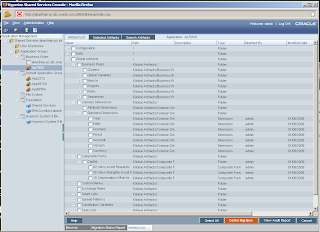
You can select all the artifacts you want to 'migrate' and click on 'Define Migration button. I selected the Composite Forms.
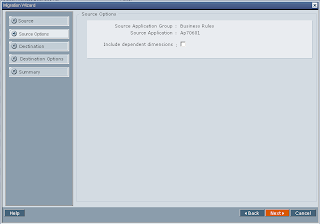
A popup will ask you if you want to include dependent dimensions. I checked the checkbox and all the dimensions which were used in those composite forms were also migrated. If you don't want the dimensions, don't select it.
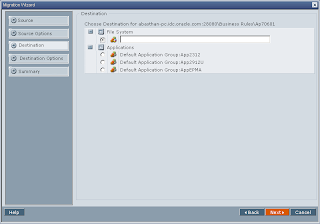
Next screen asks you if you want to migrate the artifact to some other application or save the artifact definition in form of XML. I chose to save the file and gave 'exim' as the destination directory. The migrated XMLs were saved in : C:\Hyperion\common\import_export\admin@Native Directory\exim\resource\Global Artifacts
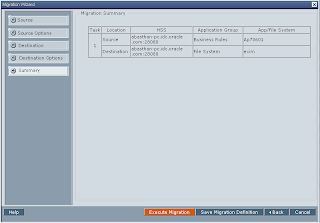
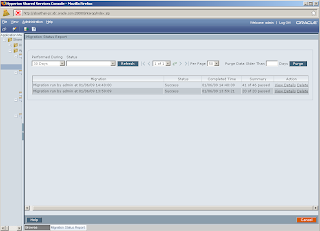
Final screen shows you migration summary. Click on Execute Migration button to start migration. A popup shows you button to launch Migration Status Report.
If the status is active, click on refresh button to get the latest status. If it is success, your migration has succeeded.
Isn't it too simple!
Open the application from the applications' list. This lists all the major categories of artifacts. Click on 'Global Artifacts'. This shows the artifacts I mentioned above and which are of interest to us.
Each of the artifacts further act as subcategories, e.g. under Common Dimensions we have Attribute Dimensions and Standard Dimensions. 'Composite Forms' lists the forms according to their folders.

You can select all the artifacts you want to 'migrate' and click on 'Define Migration button. I selected the Composite Forms.
A popup will ask you if you want to include dependent dimensions. I checked the checkbox and all the dimensions which were used in those composite forms were also migrated. If you don't want the dimensions, don't select it.

Next screen asks you if you want to migrate the artifact to some other application or save the artifact definition in form of XML. I chose to save the file and gave 'exim' as the destination directory. The migrated XMLs were saved in : C:\Hyperion\common\import_export\admin@Native Directory\exim\resource\Global Artifacts

Final screen shows you migration summary. Click on Execute Migration button to start migration. A popup shows you button to launch Migration Status Report.

If the status is active, click on refresh button to get the latest status. If it is success, your migration has succeeded.

Isn't it too simple!
Comments